
HDMI IPTV Modulator HDMI: Have you ever wondered how you can turn your streaming box or Blu‑ray into house channels that everyone can tune to on any HDTV?
You can use a professional encoder and a single modulator to broadcast clear QAM cable channels over your existing coax network and to stream over your local network at the same time. That means crisp HD video and reliable audio on every drop without a box at each TV.
Digital QAM rides your analog coax like legacy NTSC/PAL, so you can mix old and new channels on different frequencies. For broad U.S. compatibility, most integrators choose MPEG‑2 for QAM; H.264 works on some brands but can be inconsistent.
Products from Thor Broadcast and Contemporary Research offer dual/quad inputs, selectable encoding, agile channel assignment, and robust RF output for flexible system design. You can daisy‑chain units to scale from a few house channels to dozens while using multicast on the network to save bandwidth.
Key Takeaways
- You can convert your HDMI sources into in‑house cable and network streams for every HDTV.
- Digital QAM is an analog RF signal that coexists with legacy channels on coax.
- MPEG‑2 offers the best U.S. TV compatibility for QAM distribution.
- Pro units support dual inputs, CC via Line 21, and scalable daisy‑chain setups.
- Use multicast to minimize network bandwidth when delivering many streams.
Turn your HDMI sources into cable TV and IPTV channels across your property
Turn any source in your AV rack into a tunable channel that every TV on your coax can pick up. Feed an hdmi source like a set‑top box, media player, or PC into a professional encoder and you create a true broadcast for your building.
Dual‑channel and multi‑channel products can place two programs on a single RF channel to maximize how many channels you carry. Many units support QAM 64/256 Annex B and ATSC for U.S. cable and allow you to assign channel numbers and names for easy tuning.
These devices also stream over the network from a GigE port, so you can deliver the same video as multicast or unicast IPTV to signage players and software decoders. Adjustable RF output up to 45 dBmV gives you the power to inject new channels into a headend or a CATV plant without reworking the rest of the system.
- Mix HDMI and SDI inputs if you need mixed formats or add more products to scale.
- Deliver hybrid coverage: RF for living rooms and network streams for displays or apps.
- Use multicast to save bandwidth when many viewers watch the same content.
hdmi iptv modulator hdmi: inputs, encoding, RF output, and IPTV streaming
Begin with the sources you’ll connect — dual HDMI, SDI, or legacy composite — and pick an encoder that matches.
Multiple video inputs and audio paths
Most professional units offer dual hdmi Type A ports up to 1080p59.94/60. Models often add SDI, Component (YPbPr), composite for Line 21, and SPDIF or analog stereo.
Use the composite feed to ingest Line 21 so the encoder can embed CC608 captions into the stream.
Video encoding profiles and resolutions
Select between MPEG‑2 for the broadest U.S. compatibility or H.264 when you control endpoints and need better compression.
Supported resolutions commonly include 480i, 480p, 576i, 720p, 1080i, and 1080p on H.264-capable units. Match resolution per program to balance quality and bandwidth.
RF modulation formats and IPTV output
RF formats include QAM 64/256 Annex B and ATSC 8VSB; firmware variants may add DVB‑T/C, ISDB‑T, or DTMB. RF levels are adjustable (roughly 19–45 dBmV).
Simultaneous IP output runs from the GigE port as MPTS or SPTS over UDP or RTP. Use multicast for shared programs and unicast for targeted streams with IGMP on managed switches.
“Choose the encoder that supports your current sources and the outputs you plan to use — it saves time during rollout.”
- Pick dual hdmi or 4-channel units for most headend builds.
- Ingest Line 21 from CVBS for compliant captions.
- Use MPEG‑2 for wide tuner support; H.264 when you need efficiency.
- Stream MPTS for multi-program carriage or SPTS for single streams over UDP/RTP.
Low latency, video encoding, and RF bandwidth planning for smooth control
Designing a low-latency video chain starts with the encoder profile and careful per-channel bitrate budgets. You need to balance delay, picture quality, and RF capacity so control signals—PTZ, DVR, or satellite remotes—feel immediate.
MPEG‑2 vs H.264: For U.S. cable plants, set the encoder to MPEG‑2 for the broadest TV compatibility. Reserve H.264 only when you control every display brand and model, since support varies across consumer TVs.
Latency tuning and Mode 2 at 1080i
Focus on DTS first. DTS drives most encoding delay; lower values cut latency but demand stronger decoders in your boxes.
Thor recommends Mode 2 at 1080i for a balanced profile—good quality and modest delay for interactive video. Keep GOP and B‑frame tweaks secondary; they affect quality more than delay.
Per-channel capacity and bitrate planning
Plan bitrates carefully: QAM 256 yields roughly 38 Mbps per RF channel, while ATSC 8VSB is about 19.2 Mbps.
If you pack multiple programs into one channel, budget bits per program. For example, four HD programs in ATSC average ~4.5 Mbps each—usable for low-motion content but poor for fast sports.
“Test profiles at your target resolution on the actual TVs you’ll deploy — real devices reveal decoding limits and control responsiveness.”
- Use 1080i Mode 2 for interactive feeds when latency matters.
- Lower DTS to cut delay, but verify decoder compatibility.
- Allocate higher bitrates to high-motion channels and lower to static ones.
- Track per-channel capacity: QAM ≈ 38 Mbps; ATSC ≈ 19.2 Mbps.
Deploy over coax, IP, or both: flexible CATV and network distribution
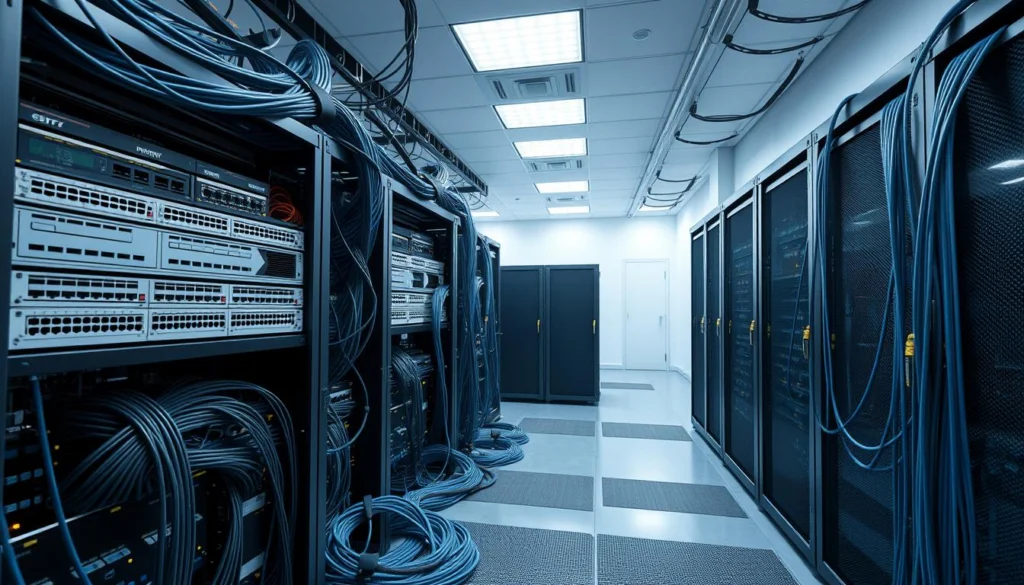
Run your broadcast over the building coax or push streams over the LAN — or do both for maximum flexibility. That approach helps you keep existing cable wiring while adding modern network delivery for signage and remote rooms.
AV over RF (CATV): channel mapping and RF output
Map each RF channel with VCT/LCN so TVs show friendly channel numbers and names. Use adjustable output to match your plant—Contemporary Research devices offer roughly 19–45 dBmV so you can inject clean carriers without overdriving amps or taps.
Hybrid systems
Combine antenna QAM/ATSC with your custom channels using the product’s RF input or an external 2×1 combiner. Just verify assigned channels don’t overlap existing carriers and monitor MER to avoid interference.
AV over IP
Use multicast on managed switches with IGMP so streams only flow to subscribed ports. Deliver via UDP or RTP as SPTS/MPTS, and use unicast for single endpoints. For long distances, consider RF-over-fiber extenders (45–1000 MHz).
- Map channels with VCT/LCN for user-friendly channel numbers.
- Set output to match your plant; mid‑40s dBmV gives headroom.
- Use multicast + IGMP to conserve network bandwidth.
- Deliver streams as UDP/RTP; switch to unicast for one-to-one links.
Compatibility, standards, and closed captioning that work where you are
Get the basics right before you ship gear or touch the headend. Match your RF format to the region so TVs and receivers tune reliably. Some products can flip standards in the GUI; others must be ordered with the correct firmware.
Regional RF standards
Pick the right regional format and firmware
In the United States, use QAM Annex B or ATSC. In Europe, choose QAM Annex A or DVB‑T. China uses DTMB. These formats are not interchangeable; TV tuners expect country‑specific signals.
Captioning workflow
How to carry closed captions when HDMI lacks discrete CC
Feed composite CVBS Line 21 into the encoder so the unit can generate CC608. This step is essential because HDMI does not provide a separate caption data path.
Supported formats and audio
Video and audio features to verify
Common supported formats include 1080i, 720p, and 480i. Enable AC‑3 passthrough when you need Dolby audio to reach TVs or AVRs. Turn on SAP for dual‑language setups.
“Keep a firmware and format matrix for each site to avoid painful mismatches when moving equipment between regions.”
- Match RF format to country: QAM Annex B/ATSC (US), QAM Annex A/DVB‑T (EU), DTMB (CN).
- Order multi‑standard products or load correct firmware before deployment.
- Use Line 21 on CVBS to produce CC608 captions when HDMI lacks CC data.
- Confirm 1080i/720p/480i support, AC‑3 passthrough, SAP, and multi‑program packing limits.
- Choose units with SDI inputs if you integrate production cameras or pro gear.
From analog to digital: migrate on existing coax and scale to more buildings
You don’t need to rip out legacy cabling to add modern broadcast channels across your property. Keep the coax plant and line amps while you introduce digital carriers on new frequencies.
Mix analog NTSC/PAL and digital QAM on separate channel numbers. Use a simple 2×1 combiner to merge carriers so TVs see both old and new lineups. That approach keeps service live during migration.
Start with a few HD channels and add capacity by daisy-chaining modulators. Many systems can yield dozens of channels—up to roughly 135 non-overlapping carriers when you plan wisely.
If you use Component or SDI sources, pick encoders that accept those inputs to avoid extra converters. Long runs (200m RG‑11) work with proper amplification. For campus links, bridge distances with RF‑over‑fiber extenders.
- Keep coax cabling and line amplifiers; digital rides your existing plant.
- Run analog and digital side by side on distinct channel numbers with a 2×1 combiner.
- Add channels by daisy-chaining modulators and reassign freed analog frequencies to HD.
- Choose units that accept component/SDI and plan RF-to-fiber for long links.
“Plan channel assignments and communicate the new lineup so users find channels easily.”
Real-world setup guidance: channels, power, and network best practices
Plan your RF and IP topology before you power up any gear. Start with an RF scan or local listings to find vacant frequencies and pick a friendly channel number that won’t clash with antenna or cable carriers.
Channel planning and RF levels
Assign non-overlapping channels and avoid antenna bands. Use an RF scanner to locate open slots and set each carrier to MER‑friendly levels.
Set output power so carriers are strong yet clean — many encoders support up to 45 dBmV. Measure MER and SNR at far outlets and tweak dBmV to keep the signal in spec.
Power, ports, and management
Use the front-panel LCD for on-site checks and the web GUI for full configuration. Keep firmware current to fix bugs and add useful features.
Connect the encoder’s Ethernet/GigE port to a managed switch for both admin and streaming. Label VLANs and ports if you separate AV and data traffic.
Scaling and network best practices
When you add more units, daisy-chain RF carefully and distribute programs so each channel’s bitrate fits QAM (~38 Mbps) or ATSC (~19.2 Mbps).
- Enable multicast with IGMP snooping/querier so each stream only travels where needed.
- Use unicast for point-to-point links and reserve multicast for shared viewing.
- Standardize names and presets when mixing video inputs like SDI and HDMI so technicians replicate settings fast.
“Document channels, programs per channel, bitrates, and RF levels so expansion and troubleshooting stay fast.”
Conclusion
Close the project with a clear plan for firmware, channel maps, and network profiles.
,Choose a product that matches your hdmi and SDI sources, supports the right U.S. format (QAM or ATSC), and offers both RF and IP outputs so you can serve CATV and network endpoints.
Lean on MPEG‑2 for widest HDTV support, pick Mode 2 at 1080i when low latency matters, and enable AC‑3 and Line 21 for clean audio and captions. Use multicast to scale streams across the LAN and unicast/UDP for point links.
Document firmware versions, bitrates, and channel assignments as you grow. With the right encoder and a sensible plan, you’ll deliver reliable video and a smooth user experience across your cable and network.